Step-by-step guide to managing key documents in your salesroom
Learn how to add, edit, replace, or delete key documents in your salesroom to streamline team collaboration and efficiency.You will learn!
- How to add and organize key documents.
- How to replace documents across multiple rooms.
- How to delete documents safely.
Adding Key Documents
Key documents are team assets!
These documents are shared and editable by your entire team, making them a powerful tool for collaboration. You can add one or more documents directly to a salesroom.Step-by-step:
- Open the salesroom and click the “+” symbol.
- Select Key Documents from the menu.
- Choose one or multiple documents to add.
- Rearrange or rename documents within the room as needed.
Replacing Key Documents
Pro Tip! Keep your documents up-to-date! If you need to update a key document across multiple rooms, follow these steps:Step-by-step:
- Navigate to Key Documents from the main menu.
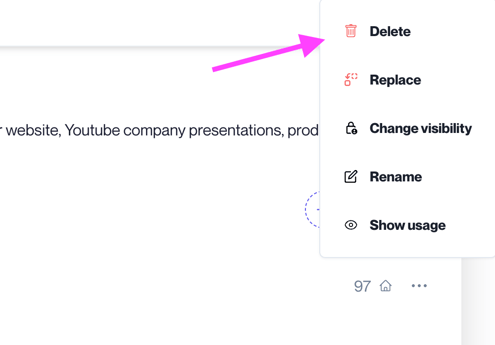
- Click Replace next to the document.
- Review the list of rooms where the document is used.
- Confirm the replacement. Room owners will receive an email notification.
Deleting Key Documents
all roomsStep-by-step:
- Navigate to the document in Key Documents.
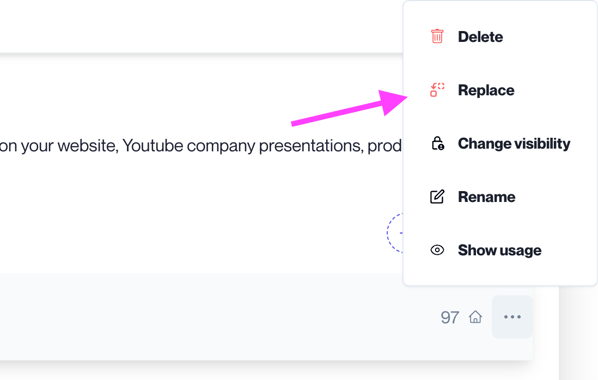
- Click the three dots next to the document.
- Select Delete.