> ## Documentation Index
> Fetch the complete documentation index at: https://docs.nouxdigital.com/llms.txt
> Use this file to discover all available pages before exploring further.
# How to use Insights
> Learn how to track room engagement, send reminders, and analyze room performance using the "Insights" section in Noux.
## Step-by-Step Guide to Using Insights in Noux Digital Sales Room
Learn how to track room engagement, send reminders, and analyze room performance using the "Insights" section in Noux.
### You will learn!
* How to access and use the "Insights" section to track room engagement.
* How to send reminders and share links with non-responding invitees.
* How to analyze room performance through detailed statistics.
### Accessing the Insights Section
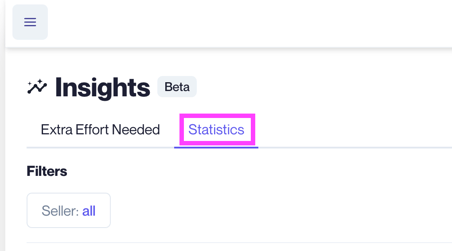
To access **Insights**, click the menu in the upper-left corner of the digital sales room and select **"Insights"**. This section shows all your invitees and their status in the room, highlighting those who need extra attention.
 ### Engaging Non-Responders
**Pro Tip!** Use the **"Filters"** feature to sort by **Sales Representative** and prioritize reminders for rooms that require the most follow-up.
The **"Extra Effort Needed"** section lists invitees who haven’t joined the room.
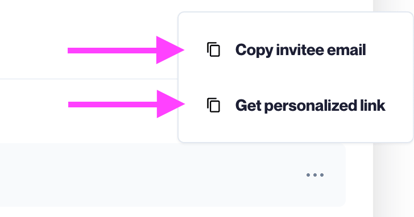
**Send Reminders:** You can send reminders to those who haven’t joined yet. **Share Links:** Alternatively, send a **"Magic Link"** via **email** or **LinkedIn**. Remember, this link can only be used once.
### Engaging Non-Responders
**Pro Tip!** Use the **"Filters"** feature to sort by **Sales Representative** and prioritize reminders for rooms that require the most follow-up.
The **"Extra Effort Needed"** section lists invitees who haven’t joined the room.
**Send Reminders:** You can send reminders to those who haven’t joined yet. **Share Links:** Alternatively, send a **"Magic Link"** via **email** or **LinkedIn**. Remember, this link can only be used once.
 ### Analyzing Room Performance with Statistics
Head to the **Statistics** section for an overview of your rooms’ performance.
**Data Provided:**
* Total invitations sent
* Percentage of invitees who joined
* Average attachments shared
* Total rooms created
* Overall visits to the rooms
Use **filters** to focus on specific rooms or time periods for more detailed insights.
With the **Insights** section, you can efficiently manage room engagement, track participation, and act on data to keep your sales rooms active and productive.
### Analyzing Room Performance with Statistics
Head to the **Statistics** section for an overview of your rooms’ performance.
**Data Provided:**
* Total invitations sent
* Percentage of invitees who joined
* Average attachments shared
* Total rooms created
* Overall visits to the rooms
Use **filters** to focus on specific rooms or time periods for more detailed insights.
With the **Insights** section, you can efficiently manage room engagement, track participation, and act on data to keep your sales rooms active and productive.