> ## Documentation Index
> Fetch the complete documentation index at: https://docs.nouxdigital.com/llms.txt
> Use this file to discover all available pages before exploring further.
# How to Use Notetaker Calendar Integration
> Learn how to invite clients and colleagues to your Noux sales room using email, personalized links, and editor permissions.
## Step-by-step guide to connecting Notetaker with your calendar and automating meeting notes
Notetaker’s calendar integration ensures your meeting notes are captured automatically and attached to the right meetings. By connecting your calendar, you enable seamless recording, transcription, and follow-up insights.
Here’s how to set it up in just a few steps.
#### You will learn!
* **How to connect Notetaker to your calendar**
* **How automatic meeting joining works**
* **How to manually select meetings for recording**
* **How to manage upcoming meetings**
### Setting Up Notetaker Calendar Integration
To connect Notetaker to your calendar, go to **Notetaker** from the left-hand sidebar in Noux.
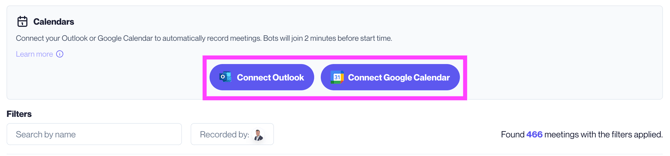
Open the **Calendars** tab inside the Notetaker view.
 ### Connecting Your Calendar
You can connect either:
* Microsoft Outlook
* Google Calendar
Click **Connect Outlook** (for example). You will be prompted to log in to your Microsoft environment.
With just a few clicks, the integration is complete.
### What Happens After Connecting?
Once connected:
* The Notetaker bot joins your video meetings **2 minutes before the scheduled start time**
* You will see your upcoming meetings for the next **14 days** inside Notetaker
If you are the **meeting organizer (host)** and the meeting is, for example, a Teams call, Notetaker will join automatically.
If the meeting is organized by someone else, automatic joining is not enabled by default.
### Connecting Your Calendar
You can connect either:
* Microsoft Outlook
* Google Calendar
Click **Connect Outlook** (for example). You will be prompted to log in to your Microsoft environment.
With just a few clicks, the integration is complete.
### What Happens After Connecting?
Once connected:
* The Notetaker bot joins your video meetings **2 minutes before the scheduled start time**
* You will see your upcoming meetings for the next **14 days** inside Notetaker
If you are the **meeting organizer (host)** and the meeting is, for example, a Teams call, Notetaker will join automatically.
If the meeting is organized by someone else, automatic joining is not enabled by default.
 ### Managing Upcoming Meetings
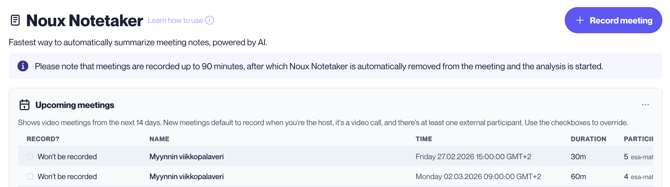
In the **Upcoming Meetings** section, you can:
* Review your daily meetings
* Select meetings in advance for recording
* Enable Notetaker for meetings organized by others
**Pro Tip:** Start your day by reviewing upcoming meetings and selecting the ones you want Notetaker to attend.
### Managing Upcoming Meetings
In the **Upcoming Meetings** section, you can:
* Review your daily meetings
* Select meetings in advance for recording
* Enable Notetaker for meetings organized by others
**Pro Tip:** Start your day by reviewing upcoming meetings and selecting the ones you want Notetaker to attend.