> ## Documentation Index
> Fetch the complete documentation index at: https://docs.nouxdigital.com/llms.txt
> Use this file to discover all available pages before exploring further.
# How to Add and Manage Materials in a Sales Room
> Step-by-step guide to adding and managing materials
## Step-by-step guide to adding and managing materials
Learn how to upload, organize, and set visibility permissions for materials in your Noux sales room for seamless collaboration.
### You will learn!
* How to upload files and links to your sales room.
* How to organize materials with folders and drag-and-drop tools.
* How to set visibility permissions for files and folders.
### How to Add Materials
#### Upload files and links to share resources
Follow these steps to add files or links to your sales room:
#### Step-by-step:
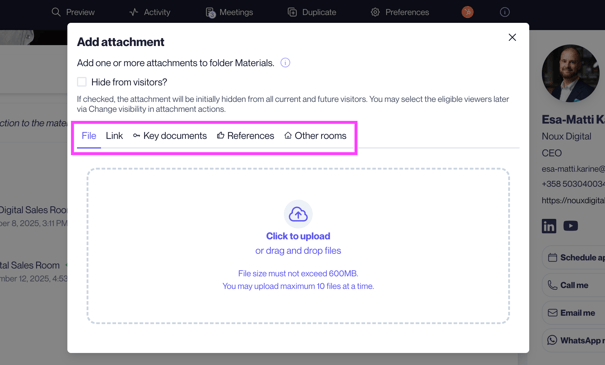
1. **Upload Files**: Click the **+** button next to **Materials**. Choose a file from your computer or a cloud service. *Note*: File size must be under 600MB, and you can upload up to 10 files at once.
2. **Upload Options**: **File Upload**: Add files from your device or cloud. **Link**: Paste URLs for external resources. **Key Documents**: Select files and links from your team’s **Key Documents**. **Other Rooms**: Import attachments from other sales rooms. Select one or more files to duplicate. To view files from colleagues’ rooms, uncheck **Show my rooms only**.
 ### Organizing Materials
**Pro Tip!** Keep materials easily accessible!
Organize your sales room materials with folders and drag-and-drop tools for better structure.
#### Step-by-step:
1. **Add Folders**: Click the three dots next to the material folder and select **Add Folder**.
2. **Drag and Drop**: Rearrange files by dragging them to your preferred order. Move files between folders or drop them into the primary area at the top.
3. **Reorder Folders**: Use **Reorder Folders** to customize the display order of your folders.
### Setting Visibility Permissions for Files and Folders
#### Control who can access your materials
Adjust visibility settings to ensure materials are available only to the intended audience.
#### Step-by-step:
1. **Select the File or Folder**: Locate the item whose permissions you want to adjust.
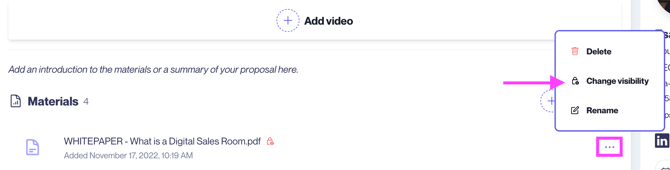
2. **Change Visibility**: Click **Change Visibility**. Choose between: **Visitor (clients)** visibility. **Internal (team members)** visibility.
3. **Optional Settings**: Enable or disable access for future visitors or team members.
4. **Restrict Access by Default**: When uploading new files, check **Hide from Visitors** to restrict access to clients.
### Organizing Materials
**Pro Tip!** Keep materials easily accessible!
Organize your sales room materials with folders and drag-and-drop tools for better structure.
#### Step-by-step:
1. **Add Folders**: Click the three dots next to the material folder and select **Add Folder**.
2. **Drag and Drop**: Rearrange files by dragging them to your preferred order. Move files between folders or drop them into the primary area at the top.
3. **Reorder Folders**: Use **Reorder Folders** to customize the display order of your folders.
### Setting Visibility Permissions for Files and Folders
#### Control who can access your materials
Adjust visibility settings to ensure materials are available only to the intended audience.
#### Step-by-step:
1. **Select the File or Folder**: Locate the item whose permissions you want to adjust.
2. **Change Visibility**: Click **Change Visibility**. Choose between: **Visitor (clients)** visibility. **Internal (team members)** visibility.
3. **Optional Settings**: Enable or disable access for future visitors or team members.
4. **Restrict Access by Default**: When uploading new files, check **Hide from Visitors** to restrict access to clients.